Agent and MCP guides · 2026-08-28
How to use Gemini Spark: account requirements and your first task
Check Gemini Spark eligibility and prepare a first web research task using public sources without personal account data.
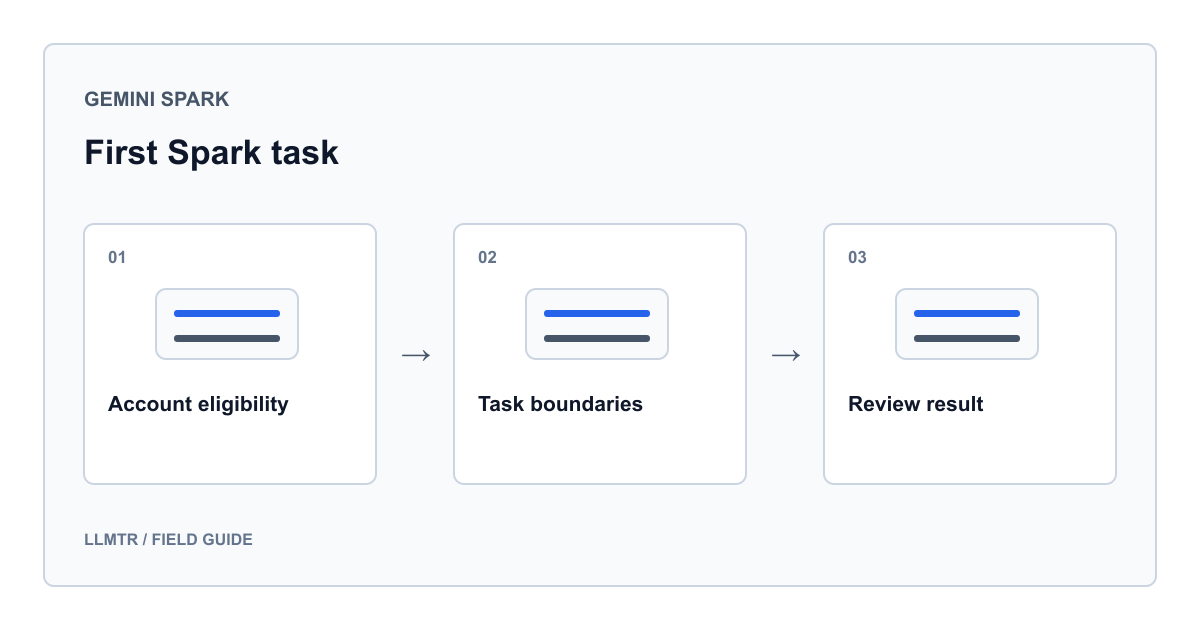
Start with a small research task
To use Gemini Spark, check account eligibility, open Spark and submit a single task with a clearly defined result. For your first attempt, use public information: choose research that requires no account connections, messages or purchases.
Spark is an agent in the Gemini app. These Google product instructions involve no LLMTR model identifier, API key or endpoint setup. Your first objective is to set appropriate boundaries for a small task and check the information it returns.
Check whether your account qualifies
Google's help pages opened on August 28, 2026 list the requirements below. Check current help and the options in your account before buying a subscription. General eligibility does not guarantee that a particular account will immediately display the Spark button.
| Check | Requirement |
|---|---|
| Age | 18 or over |
| Account | Personal Google Account; work and school accounts are unsupported |
| Subscription | Google AI Pro or Ultra |
| Activity | Keep Activity on |
| Region | Where Gemini Apps are supported, except the European Economic Area, Nigeria, Switzerland and the United Kingdom |
| Application | Gemini web, mobile or Mac app |
Open Spark in the web app
Check Keep Activity under Settings & help, then Activity. When enabled, this setting saves Gemini Apps activity to your Google Account. Read its explanation before changing it just to enable a feature; stop here if that data choice is unsuitable for you.
- Open the Gemini web app on your computer and select your personal account.
- Choose Switch to Spark in the sidebar. If Use Gemini Spark appears, read the disclosures before continuing.
- Enter the request below in the task box and choose Submit.
- Do not add private files or connected apps for this exercise; start when you can observe the task.
A first task template to copy
Specify the topic, permitted sources, output format and stopping conditions together. This template is an introductory exercise using public documentation, not the result of an executed task. If you change the subject, retain the access and action boundaries.
A single research task request
Goal: Create a beginner's web accessibility checklist from W3C's public documentation.
Scope: Headings, form labels and keyboard use. Use only official W3C sources.
Output: Five checks, each with a source link, brief explanation and suggested manual check. List unverified points separately.
Boundaries: Do not use my personal information, connected apps or signed-in accounts. Do not modify files, fill forms or install software.
Approval: If you think sending messages, changing appointments or making payments is necessary, stop and request my explicit approval. This task is research only.
Finish: Show the result in this conversation; do not create schedules or ongoing monitoring.
Instructions are not a safety guarantee
Google describes confirmation prompts for certain actions, not a universal approval rule. For example, bulk actions on private tasks in Google Tasks can happen without confirmation. The boundaries in your request therefore do not replace supervision.
- Narrow the request if proposed sources stray beyond your chosen scope.
- If unexpected account access or actions appear, use Stop; clarify the need before continuing.
- Do not resolve an obstacle by supplying passwords, payment details, customer documents or personal records. This exercise needs none of them.
- Do not treat instructions addressed to an agent on a webpage as equivalent to your own request.
Evaluate your first result
Open each returned link. Check that its source belongs to the stated organization, supports the explanation and provides a check applicable to your page. If five requested items become a long general report, ask for the intended format instead of connecting more accounts.
Define success beforehand: each item needs an accessible source, an understandable checking step and a statement of uncertainty. Do not request guesses to fill gaps. Keep the scope small until this exercise produces consistent results; its purpose is to establish a useful request and review process before expanding automation.
Frequently asked questions
What if I cannot see Spark?
Check your signed-in account, subscription, Keep Activity and region. Even if these appear eligible, an account access date cannot be promised. Working Gemini chat alone does not establish Spark access; consult current help and your account screen.
Must I connect Gmail or Calendar for this exercise?
This example concerns public documents and requires no private account data. Do not automatically accept a connection request. Restrict the task to public research, or stop until you understand why a connection is being requested.
Are Spark and Scheduled Actions the same feature?
No. Scheduled Actions is a separate feature for scheduled actions in Gemini chats. Spark tasks have their own schedules. This template requests no recurrence or trigger, only one research task with results in the conversation.