Integration guides · 2026-11-14
Set up LLMTR in Timon: API key, host permission and model selection
Configure LLMTR as Timon's built-in provider with an LLMTR_API_KEY secret, a narrow llmtr.com permission for provider-llmtr and an exact model id.
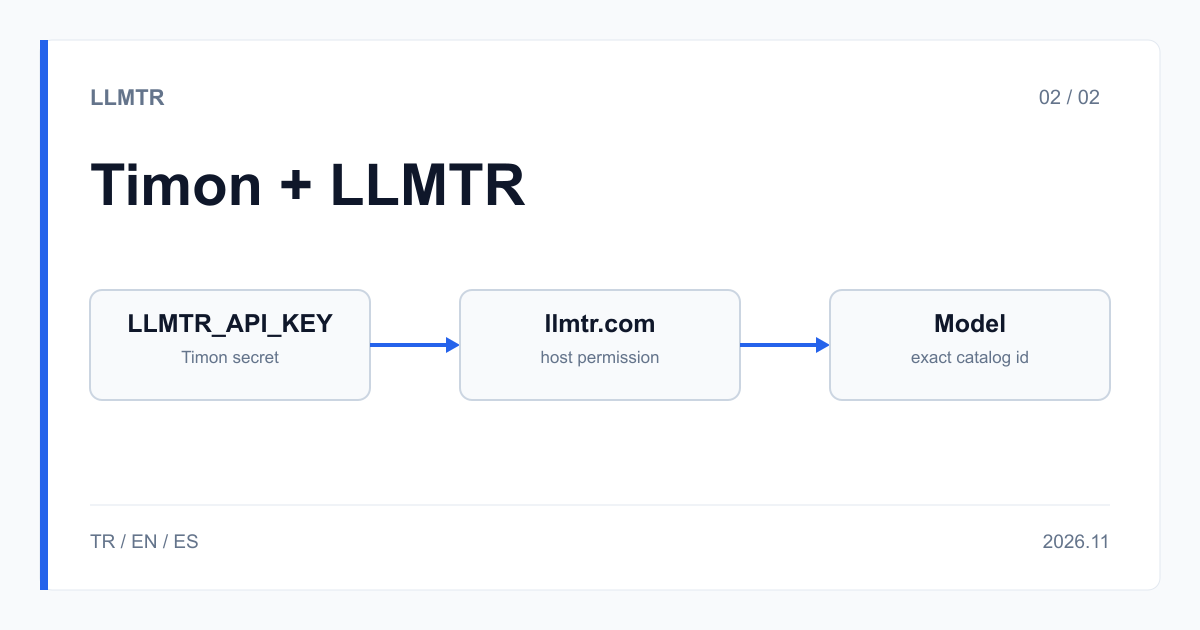
Before you start: an LLMTR key and a current Timon installation
This guide assumes a current Timon installation in which LLMTR is a built-in provider. Do not install an additional LLMTR plugin or create a custom OpenAI address through the Add a backend form; the built-in LLMTR profile carries its own Chat Completions connection.
Create a new API key in your LLMTR account. Do not put the key in this guide's JSON, a project file or your shell history. You will add it under Settings > Secrets in Timon.
1. Create the LLMTR_API_KEY secret with a narrow grant
On Timon's Secrets page, create an inject secret named exactly LLMTR_API_KEY. Its value is the key from your LLMTR account. Timon does not write it into the ordinary configuration file or show it in model selectors.
Reserving the secret for the llmtr backend is the recommended scope. A global grant also works, but makes the key available to every backend and is broader. Other backends do not need the LLMTR key. With no grant, the LLMTR profile stays inactive.
2. Allow llmtr.com only for provider-llmtr
The LLMTR provider manifest declares the host it wants to contact, but that declaration grants no access by itself. In timon.config.json, add llmtr.com under pluginPolicy.http.byPlugin for provider-llmtr. This narrow setting allows only the LLMTR provider to reach that host.
Merge the object below into your existing configuration; do not remove its other fields. Adding llmtr.com to pluginPolicy.http.allow also works, but it opens the host to every plugin that may make outbound requests, so this guide does not use that broader option.
Timon configuration that gives the LLMTR provider network access only to llmtr.com.
{
  "pluginPolicy": {
    "http": {
      "byPlugin": {
        "provider-llmtr": ["llmtr.com"]
      }
    }
  }
}3. Select LLMTR and a chat-compatible model
Open a model selector in Timon, choose LLMTR as the provider, and pick a catalog model that supports Chat Completions. If you select minimax/minimax-m3.1-flash, Timon sends that same string to LLMTR; it keeps the provider prefix and creates no alias.
The model list is read without a key from LLMTR's public /v1/models response. Seeing a model in the list does not prove that LLMTR_API_KEY is valid. The first real message checks the key; on a 401 or 403, review the secret value and its grant.
4. Verify the setup with a short text message
Start a new Timon conversation and send a short text question that needs no tools. A successful turn displays text from the selected model. Do not make the first check a file-editing, terminal or image task: the LLMTR backend receives none of those Timon capabilities.
No request is sent until the llmtr.com permission exists. With permission in place, Timon uses the fixed Chat Completions address, keeps the model id unchanged, and uses LLMTR_API_KEY for Bearer authentication.
Common setup problems
The table narrows down what to check when the first text message does not answer. Do not paste the secret value or a full error body into a support message; share only the status and the step that failed.
| Symptom | Check |
|---|---|
| LLMTR is inactive in the selector | Check that the LLMTR_API_KEY inject secret is granted to the llmtr backend or globally |
| pluginPolicy.http error | Add the llmtr.com host permission under provider-llmtr |
| 401 or 403 | Replace the secret with a current LLMTR key; the visible model list does not validate it |
| unsupported_operation or model error | Choose a Chat Completions catalog model and use its exact id |
| An image attachment is refused | This Timon backend has no image attachments; use text input |
| No file change or tool call | This backend has no Timon tools or worktree; select another, tool-capable backend |
The secure default
The narrow working setup has three choices: reserve LLMTR_API_KEY for the llmtr backend, grant the host under byPlugin only to provider-llmtr, and run a Chat Completions text model. These settings expose less than a global secret and a general host allowlist.
When you rotate the key, update the same secret entry. For model ids, use the current LLMTR model catalog instead of a copied, older list.
Set up Timon's built-in LLMTR provider
Add the LLMTR_API_KEY secret, allow only the llmtr.com host, select a chat-compatible model under its exact id, and verify it with a short text message.
- Secret. Create an inject secret named LLMTR_API_KEY under Settings > Secrets and grant it only to the llmtr backend.
- Host permission. In timon.config.json, grant provider-llmtr access to the llmtr.com host under byPlugin.
- Model. Choose LLMTR and a Chat Completions model such as minimax/minimax-m3.1-flash under its exact id.
- Verification. Send a short text message that needs no tool or image; if it fails, use the troubleshooting table.
Frequently asked questions
Should I write LLMTR_API_KEY in timon.config.json?
No. Store the key as an inject secret under Settings > Secrets; the configuration file contains only the llmtr.com host permission.
Does LLMTR require a global secret grant?
No. A global grant works, but reserving the secret for the llmtr backend is the narrower, recommended scope.
Does a visible model list prove that my key works?
No. /v1/models is public and is fetched without the key; the first real chat request validates the key.